What this bundle is trying to solve
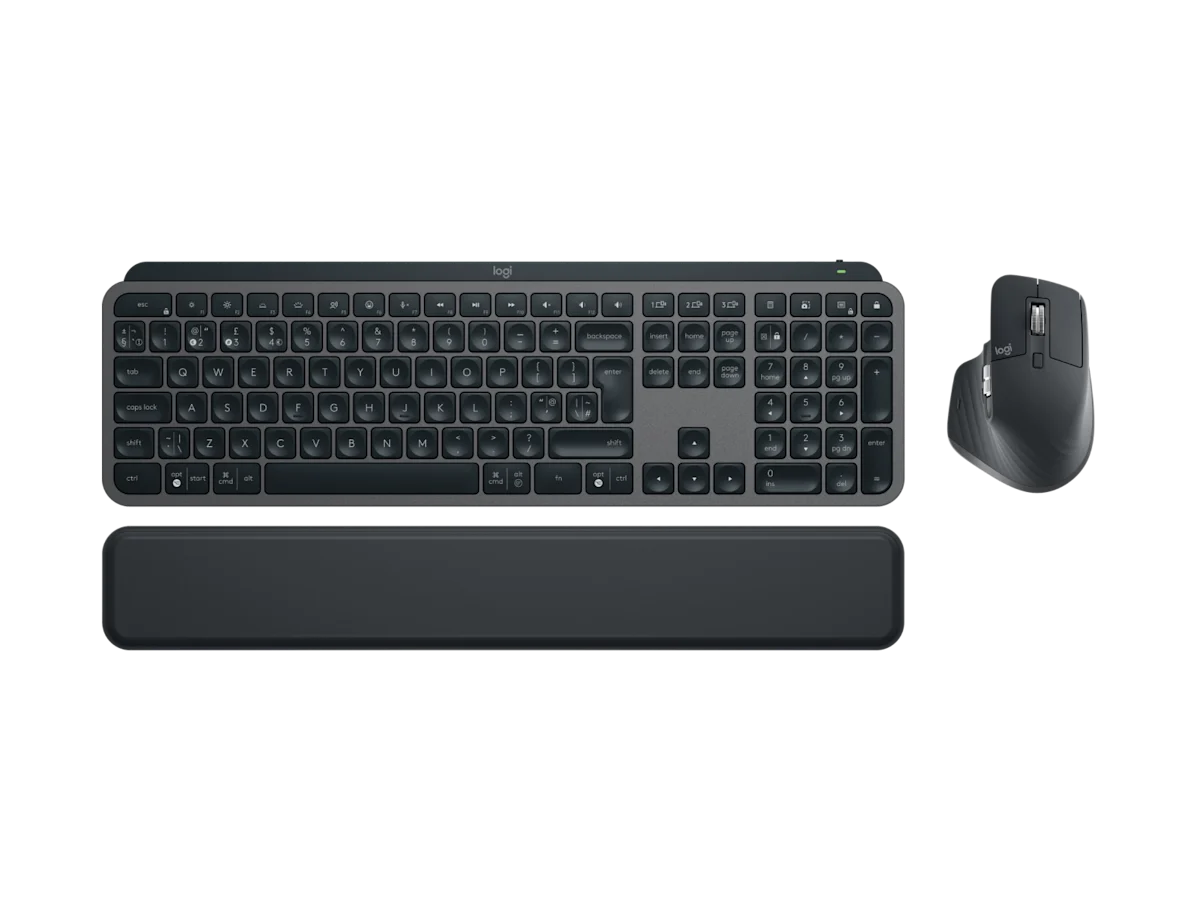
The Logitech MX Keys S Combo is for people who want a calm, capable desk rather than a loud gear collection. It pairs a low-profile wireless keyboard with an MX-series mouse and uses Logitech's software ecosystem for shortcuts, device switching, and flow-style productivity features. For card-game study, that means the bundle is less about fast reactions and more about writing notes, moving between windows, searching documents, and keeping the desk quiet during long review sessions. See our team context on about Enjoy Poker and how we separate editorial assessment from commercial relationships in the editorial policy.
Logitech's official UK product page for the MX Keys S Combo positions it as a productivity bundle with a full-size keyboard, backlighting, smart actions, and multi-device support. Those are relevant features if your study desk includes a laptop, monitor, tablet, and maybe a work computer. They matter less if you only need a cheap keyboard for occasional typing. The question is not whether the bundle is premium; it is whether its convenience replaces enough separate decisions to justify the price.
Setup and first fit
The biggest advantage of the MX Keys S Combo is predictability. The keyboard uses a familiar full-size layout, the typing angle is low, and the mouse shape is built around everyday productivity rather than dramatic styling. That makes the bundle easy to recommend for readers who do not want to experiment with switch types, keycap profiles, or compact layouts. You place it on the desk, pair it, install software if you want the extra features, and get to work.
For card-game study, the full-size layout can be useful. Number entry, spreadsheet notes, and shortcut-heavy workflows are easier when the numpad and function row are present. The downside is desk width. If your mouse area is already cramped, a full-size keyboard pushes the mouse farther away. That can create shoulder discomfort during long sessions. Measure your desk before buying, especially if you also use a notebook, tablet stand, or 27-inch monitor.
The keyboard is quiet enough for shared spaces. It is not silent, but it avoids the sharp sound that makes some mechanical boards difficult in a household or late-night environment. The key travel is short and laptop-like. Readers who enjoy a crisp mechanical switch may find it flat; readers who want fast, low-effort typing may prefer it. That divide is exactly why our MX Keys S vs Keychron K3 Max comparison treats feel as a workflow question, not a universal ranking.
Typing feel during study sessions
Study typing is different from office typing. You are often writing short observations, tagging mistakes, copying a line from a lesson, or summarising a hand. The MX Keys S is good at that because it is stable, low, and easy to return to after using a laptop keyboard. The scooped key tops help with orientation, and the backlight is useful in dim rooms. If your study notes are structured and frequent, the keyboard feels more valuable than it would for occasional web browsing.

The bundle is weaker if you want heavy tactile feedback. A low-profile productivity keyboard cannot mimic the feel of a deeper mechanical board. It also does not invite the same level of physical customisation. You are buying a finished tool, not a hobby platform. That is a strength for some readers and a limitation for others.
For long notes, wrist position is the practical comfort check. The low-profile board reduces the need for a tall wrist rest, but some readers may still prefer one. Try a full review block with normal typing, browser shortcuts, and document editing before deciding whether the shape suits you. A keyboard can feel premium and still be wrong if it makes your shoulders tense or pushes the mouse too far away.
There is also a pace benefit. The MX Keys S does not ask you to learn a compact layer system. If you frequently switch between work, study, and general browsing, the familiar layout reduces friction. If you are intentionally building a minimalist desk, the full-size board may feel excessive. A compact mechanical keyboard such as the Keychron K3 Max is a more space-efficient alternative; we review that separately in our Keychron K3 Max review.
Mouse and multi-device workflow
The mouse side of the combo matters more than it first appears. Study sessions often involve moving between a lesson video, browser notes, spreadsheets, and saved documents. A good mouse with a reliable scroll wheel and comfortable shape makes that navigation feel calmer. Logitech's MX mice are popular for this reason: they are not built around bright gaming cues, but they handle productivity movement well.
Multi-device switching can be useful if you keep a work laptop and study laptop on the same desk, or if you use a tablet as a secondary reference device. Logitech's ecosystem can pair across devices and, depending on configuration, let shortcuts behave differently by app. The value depends on whether you actually use those features. If you dislike installing peripheral software, the combo still works as hardware, but part of the price is tied to the software layer.
Reliability and battery expectations
Battery life is one of the reasons to buy a productivity keyboard instead of a flashier board. Logitech lists long battery expectations for the MX line, with backlighting affecting runtime. The practical advice is simple: leave a USB-C cable near the desk and charge before travel or an intensive week. Do not build a workflow that depends on never charging. Backlighting, Bluetooth conditions, and device switching all influence real runtime.
Wireless reliability is usually good in normal rooms, but crowded desks can create interference. If your study setup includes a router, dock, external drives, and several Bluetooth devices, test pairing positions before blaming the keyboard. A receiver or direct Bluetooth connection may behave differently depending on the machine. Keep this in mind if you also care about latency; our low-latency setup guide covers the wider desk factors.
Value compared with buying separately
The combo is best value when you want both keyboard and mouse and expect to use Logitech's software. If you only need the keyboard, buy the keyboard alone. If you already own a mouse you like, the bundle may not be efficient. If you want a compact mechanical keyboard, the combo is solving the wrong problem. The strongest buyer is someone who wants one premium productivity package with minimal experimentation.
The price also competes with monitor, tablet, and chair upgrades. For some readers, a better monitor will improve study more than a premium keyboard. For others, the keyboard is the daily contact point and should be upgraded first. A useful rule is to upgrade the tool that interrupts your study most often. If you keep mistyping notes, fighting a noisy keyboard, or moving between devices clumsily, the MX Keys S Combo is a sensible candidate.
Warranty and replacement availability also matter for a daily desk tool. A keyboard used for work and study is touched constantly, so failed keys or a worn mouse button can interrupt more sessions than a spec sheet suggests. Check the retailer return window, local support route, and whether you can replace only the keyboard or mouse later.
Buying verdict
The Logitech MX Keys S Combo is a strong fit for quiet, productivity-focused card-game study desks. It is polished, familiar, and easy to live with. It is not the best fit for mechanical-keyboard fans, compact-layout minimalists, or gaming-first buyers. The bundle earns its place when you value low-noise typing, reliable mouse control, multi-device switching, and a desk that feels ready without tinkering.
Our verdict is practical: buy it if you want the cleanest productivity route. Skip it if you want switch feel, compact layout control, or the lowest possible cost. If you are between Logitech and Keychron, decide whether you want a finished office tool or a more enthusiast-style keyboard. That choice matters more than any single spec line.
Source notes and next reads
Start with Logitech's official MX Keys S Combo page for current bundle details, then compare Keychron's official K3 Max page if compact mechanical feel is the alternative. If your keyboard will sit beside a monitor, Dell's UltraSharp U2724D page is a useful reference for desk-width and monitor workflow context.
For Enjoy Poker follow-up, read MX Keys S vs Keychron K3 Max for the direct choice. If connection reliability is the concern, use the low-latency desk guide. If you want a keyboard for travel rather than a fixed desk, the portable setup guide is the better frame.
FAQ
Is the MX Keys S Combo too large for a small desk?
It can be. The full-size keyboard includes a numpad, which is useful for spreadsheets but wide for compact desks. Measure your available keyboard and mouse area before buying, especially if a tablet stand or notebook sits beside the keyboard.
Can I use it with both Mac and Windows?
Yes, Logitech designs the MX line for multi-platform use, but exact shortcut behaviour depends on layout, operating system, and software configuration. If you switch daily, set aside time to tune modifier keys and app shortcuts.
Is it better than a mechanical keyboard for study?
It is better for quiet, low-effort productivity. A mechanical keyboard is better if you care about switch feel, repairability, and compact layouts. Neither is universally better; the right choice depends on how and where you study.