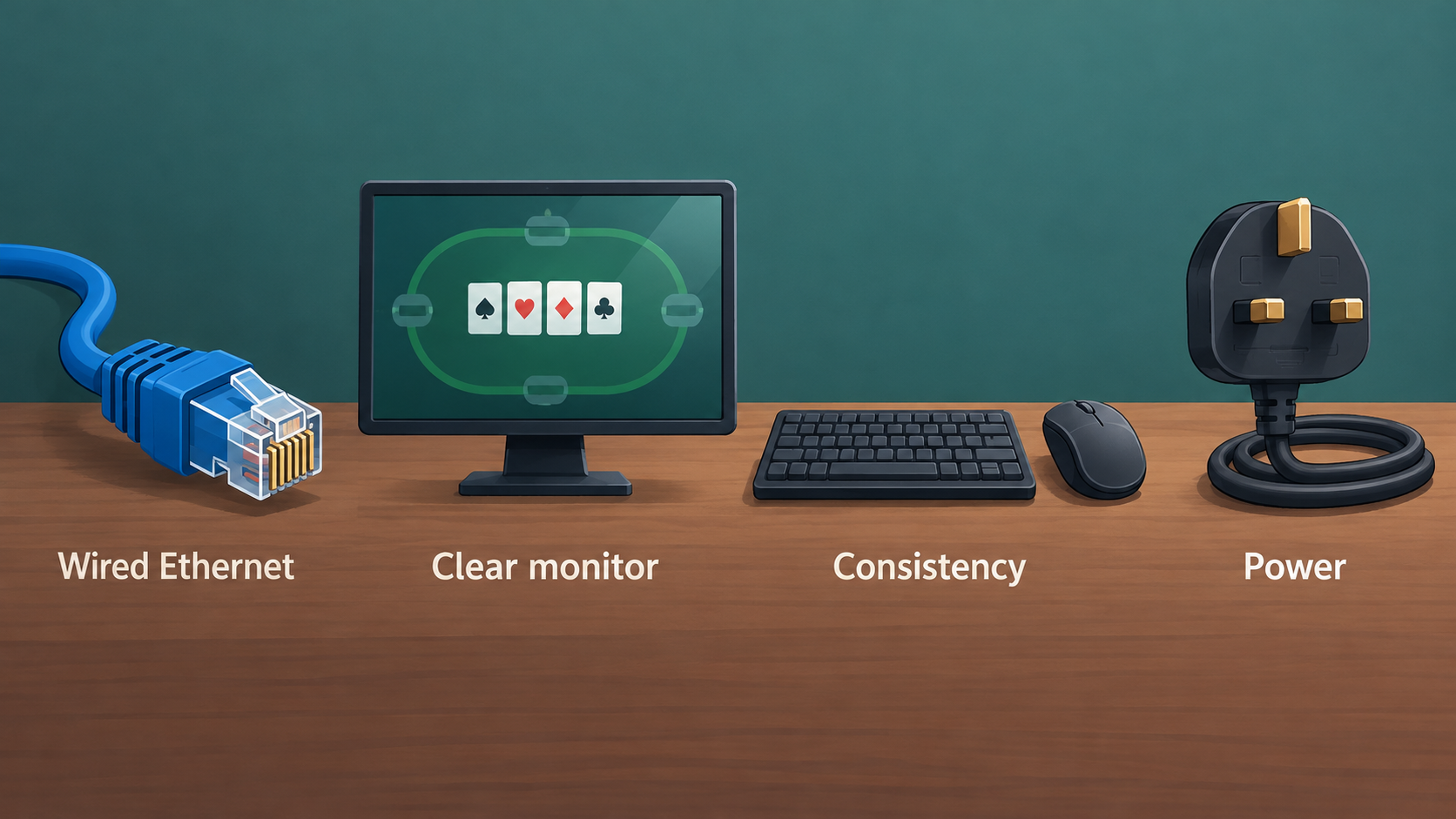
AI-generated illustration — not a retailer product photo.
Low latency starts with reliability
Low latency is often discussed as if one purchase fixes everything. In practice, a reliable online card-game desk is a chain: internet connection, router, computer, display, keyboard, mouse, power, browser, and your own habits. The weakest link creates the interruption. A premium keyboard does not compensate for unstable Wi-Fi. A fast monitor does not compensate for a laptop on a weak charger. The goal is to remove avoidable failures before buying flashy gear.
This guide is electronics-focused and workflow-focused. It is not strategic advice about game decisions. It covers the desk conditions that help you study and play online without needless technical friction. Our review standards are on editorial policy, and the site context is on about Enjoy Poker.
Network path: fix this first
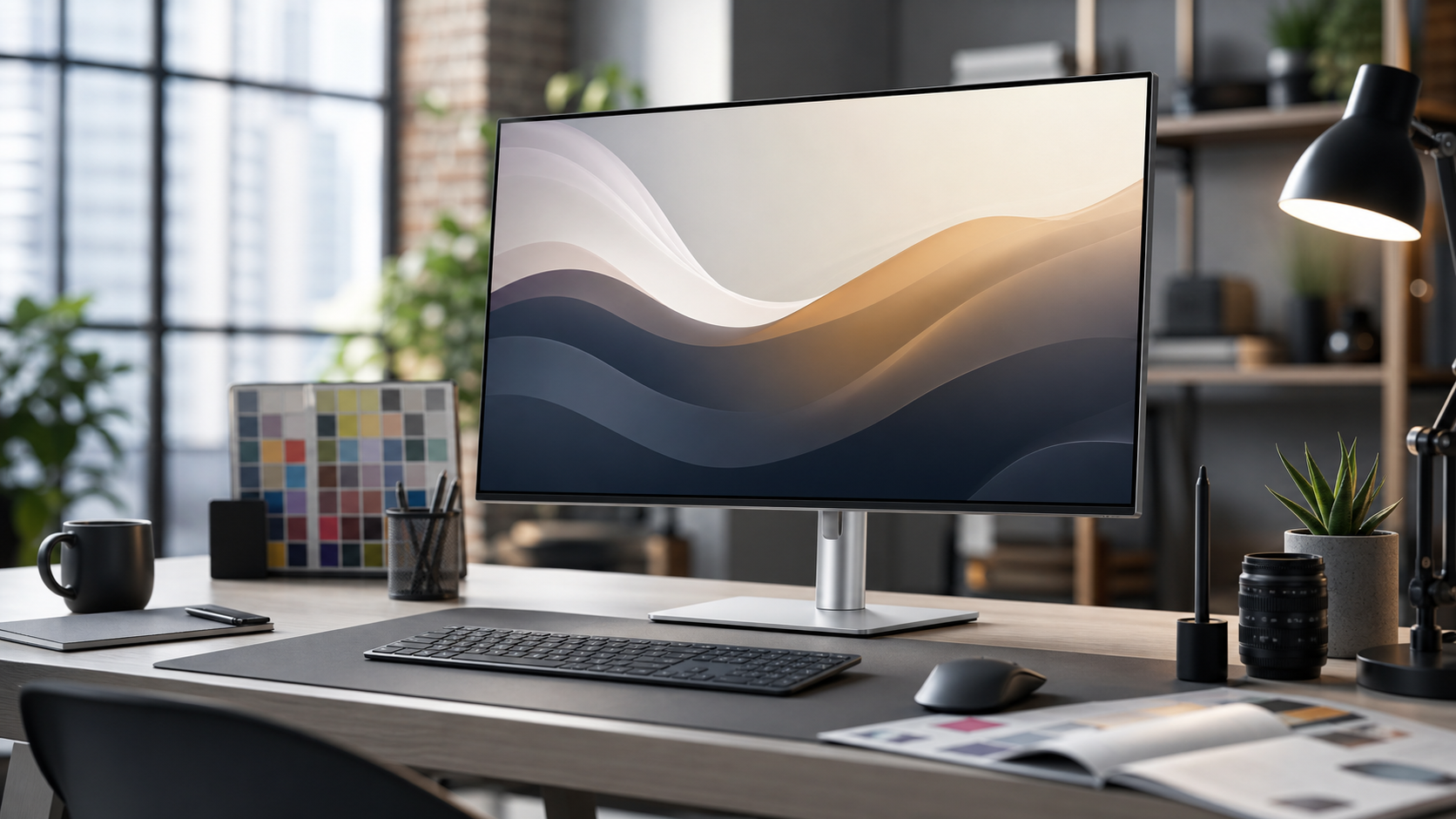
AI-generated illustration — not a retailer product photo.
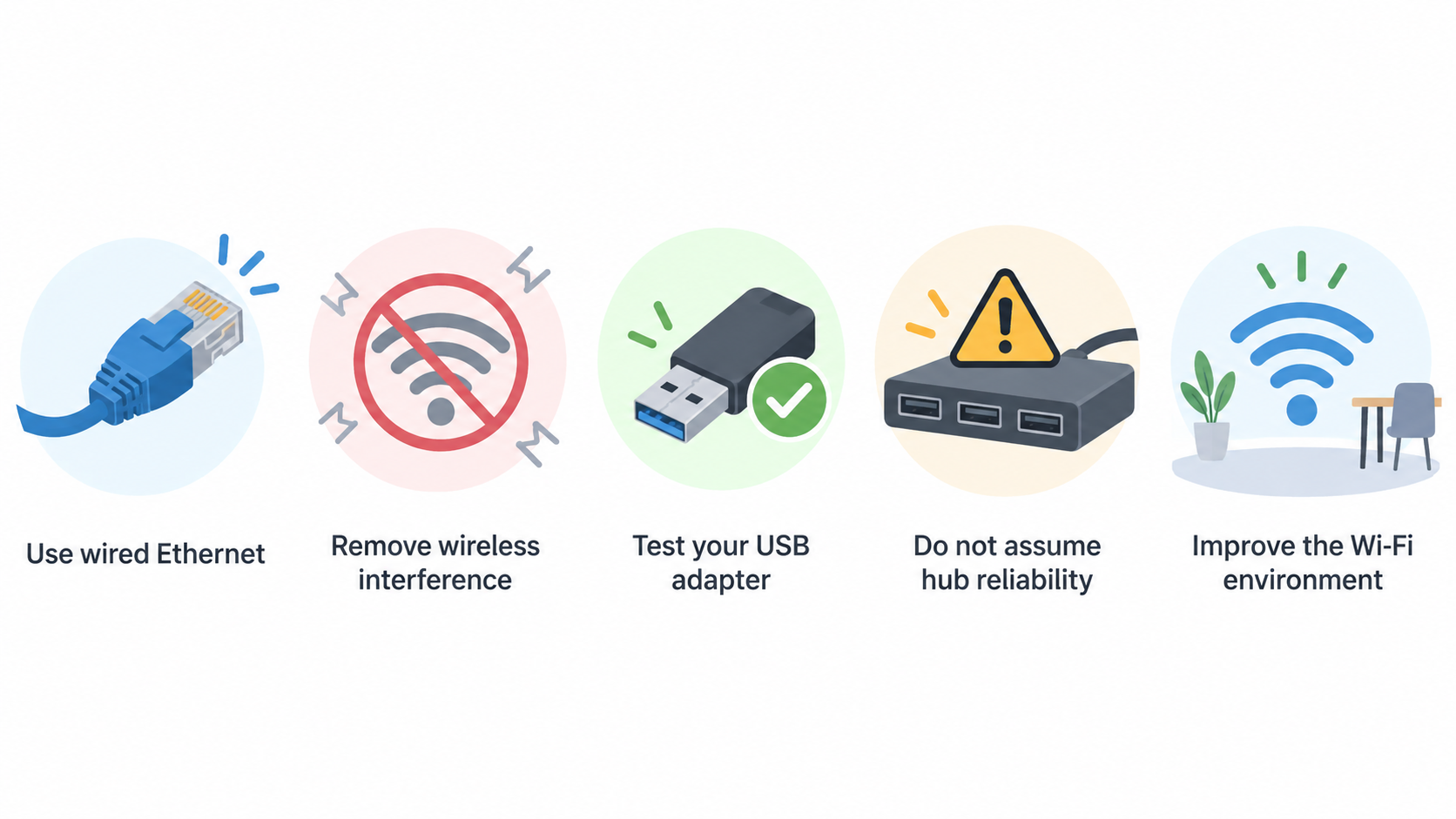
If the session depends on a stable connection, use wired Ethernet when practical. Ethernet removes wireless interference, distance issues, and some router roaming behaviour. If your laptop lacks Ethernet, use a reputable USB-C or USB-A adapter and test it before important sessions. Do not assume a random hub will behave well under load.
If you must use Wi-Fi, improve the environment. Keep the device near the router or access point. Avoid placing the router behind metal objects, monitors, or dense furniture. Use the less congested band if your router and room support it. Run a normal video call or streaming test from the exact desk before relying on the setup. Stability matters more than a single speed-test peak.
Keep a fallback plan. A phone hotspot can rescue a study session, but it is not a guaranteed replacement for home broadband. Check signal strength, data limits, and battery. If hotspot is part of your plan, a power bank such as the Anker 737 can protect the phone battery, but it should not hide a poor primary connection.
Display: clarity before refresh rate
A clear monitor reduces mistakes because you can read notes, charts, and windows without constant zooming. For most readers, a 27-inch QHD monitor is the best balance. It gives enough room for a browser, notes, and reference material without the scaling complications of some 4K setups. The Dell UltraSharp U2724D and BenQ GW2790QT are examples of monitor types we consider for study desks.
Refresh rate can make the desktop feel smoother, but it is not the first priority unless you also play fast video games. For online card-game study, text clarity, stable inputs, height adjustment, and comfortable brightness matter more. A monitor that lets you sit well and read cleanly is a bigger upgrade than a panel bought only for marketing numbers.
Set the monitor height properly. Your eyes should meet the upper portion of the display when sitting naturally. If the stand cannot reach that, use a monitor arm or riser. Poor posture creates fatigue, and fatigue creates poor review quality.
Keyboard and mouse: consistency over drama
For input devices, consistency matters more than extreme specs. A quiet productivity keyboard such as the Logitech MX Keys S is strong for notes and multi-device control. A compact mechanical keyboard such as the Keychron K3 Max is strong for desk space and custom shortcuts. Choose by workflow: full-size familiarity or compact control.
Wireless input is fine for many readers, but keep it boring. Charge devices before long sessions, keep receivers close, and avoid placing them beside noisy hubs or metal monitor stands. If you experience dropouts, test wired mode or a different receiver position before replacing the keyboard.
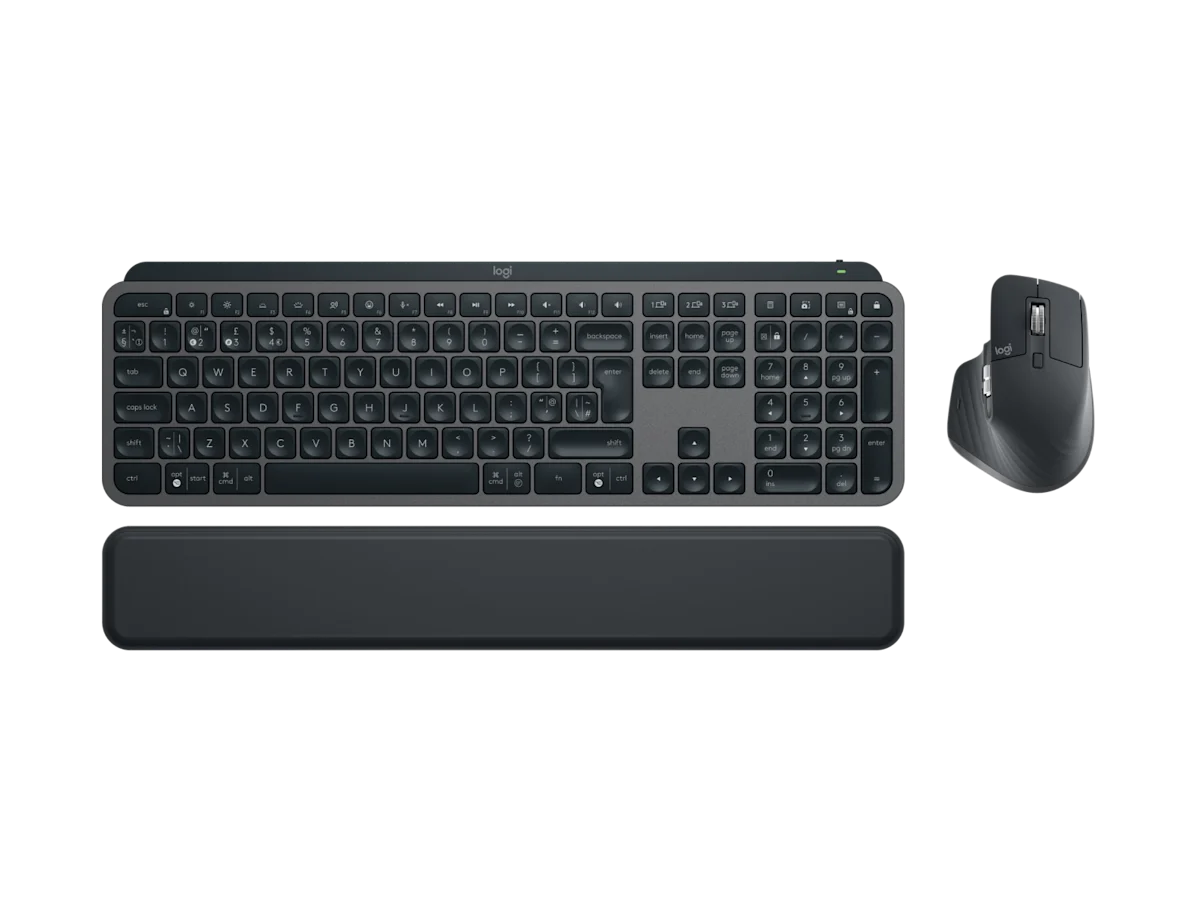
Mouse comfort matters because window management and note navigation happen constantly. A mouse that causes wrist tension can ruin a long session. If your desk is narrow, a compact keyboard can improve mouse position more than a new mouse can.
Power and cable discipline
Power issues are a common hidden source of instability. A laptop on a weak charger may throttle, discharge slowly, or disconnect from peripherals. A tablet connected through a poor cable may charge inconsistently. A hub that overheats can break display or network connections. Use rated cables, known chargers, and a hub only when needed.
Label critical cables. Keep one known-good USB-C cable for laptop or tablet charging and avoid mixing it with low-power accessory cables. If you use a USB-C monitor for one-cable docking, verify the monitor's power delivery and your laptop's requirements. If they do not match, use a separate charger.
For travel, a high-output power bank can protect a session. For a fixed desk, wall power is better. The power bank is backup, not the centre of the setup.
Browser and app discipline
Latency is not only hardware. Browser clutter can create lag, distractions, and notification noise. Before important study or play sessions, close unnecessary tabs, pause heavy downloads, and stop cloud sync jobs if they cause problems. Keep only the tools you need: client, notes, reference material, and communication if required.
Use a separate browser profile if it helps. A clean profile with only study bookmarks and required extensions reduces accidental distractions. It also makes troubleshooting easier because fewer extensions interfere with sites.
Test the setup before relying on it
Run a short rehearsal. Open the monitor layout, notes, browser tools, and any client or video material. Type notes for ten minutes. Move windows. Check audio. Confirm charging. If using Wi-Fi, run a normal call or stream. This test finds problems before they matter.
Keep a small checklist near the desk: charger connected, backup internet known, keyboard charged, notes open, notifications quiet, cable seated. The checklist sounds basic because it is. Reliable desks are made from basic things done consistently.
Keep a short reliability note for the first week. Record the date, connection type, device used, and any dropout or slowdown. This does not need to be technical. A line such as "tablet on Wi-Fi, one video buffer, Bluetooth keyboard reconnected after sleep" is enough. Patterns appear quickly. If every issue happens on Wi-Fi in one room, move the router or use a wired link. If every issue happens after sleep, adjust power settings before buying more equipment.
If the log stays clean for a week, stop changing hardware. Stability has value. Many desks get worse because small successful setups are constantly replaced by new accessories.
Session log and rollback plan
Write down the last change before any important session. That might be a new browser extension, monitor cable, keyboard receiver position, Wi-Fi band, router location, or charger. If the session becomes unstable, the log gives you a first rollback instead of a vague feeling that "something changed." This is especially useful on desks that serve both work and study, because work software, cloud sync, VPN clients, and meeting tools can quietly affect performance.
Keep one known-good layout. Save the monitor arrangement, keep a spare cable nearby, and know which browser profile is clean. If you experiment with a hub, new keyboard mode, or different Wi-Fi setup, test it during a low-risk study block first. Do not introduce three changes at once. A low-latency setup improves when each variable is boring enough to isolate.
The same applies to travel backups. If phone hotspot is the fallback, test it with the laptop and charger before you need it. If a power bank is the fallback, confirm the cable and output mode. Backup plans are only useful when they have been rehearsed.
Buying verdict
Spend first on the weakest link. If Wi-Fi drops, fix network. If text is cramped, buy a monitor. If notes are painful, upgrade keyboard. If battery anxiety interrupts travel, buy a power bank. Do not start with gaming accessories because they are easier to shop for.
A low-latency card-game desk should feel uneventful. The monitor wakes, the keyboard works, the connection holds, and the notes are ready. That boring reliability is the point.
Source notes and next reads
For product references, we used Dell's official UltraSharp U2724D page, BenQ's official GW2790QT page, and Logitech's MX Keys S Combo page. For charging context, compare Anker's 737 Power Bank page, but remember that fixed desks should rely on proper wall power before portable battery backup.
If your display is the weak link, start with our best monitors guide. If typing and mouse control are the weak link, read the Logitech MX Keys S Combo review and Keychron K3 Max review. If you study away from the desk, switch to the portable setup guide instead of overbuilding a fixed station.
FAQ
Should I use Ethernet through a USB-C hub?
Yes, if the hub is reliable and tested. Avoid using an unknown hub for the first time during an important session. If Ethernet is critical, consider a dedicated adapter.
Is Bluetooth input too slow?
Bluetooth is fine for many study tasks. If you notice dropouts or delay, test 2.4 GHz receiver mode or wired mode. Consistency matters more than theoretical numbers.
Does a better monitor reduce misclicks?
It can help indirectly by making text and windows clearer. A monitor will not fix poor habits, but a readable layout reduces visual strain and window confusion.
Editorial information: Read our affiliate disclosure.